Register Settings - On Demand Availability
Article Contents:
This article shows you how set a schedule for On Demand availability for delivery and pick up schedule.
Step-by-Step:
Step 1: Click on Settings, then select Register Settings from the left-hand-side menu. Then, click on the On Demand tab along the top.
Step 2: Here you will be able to toggle On Demand on/off, schedule for certain days and times of the week, and schedule for a specific period of time.
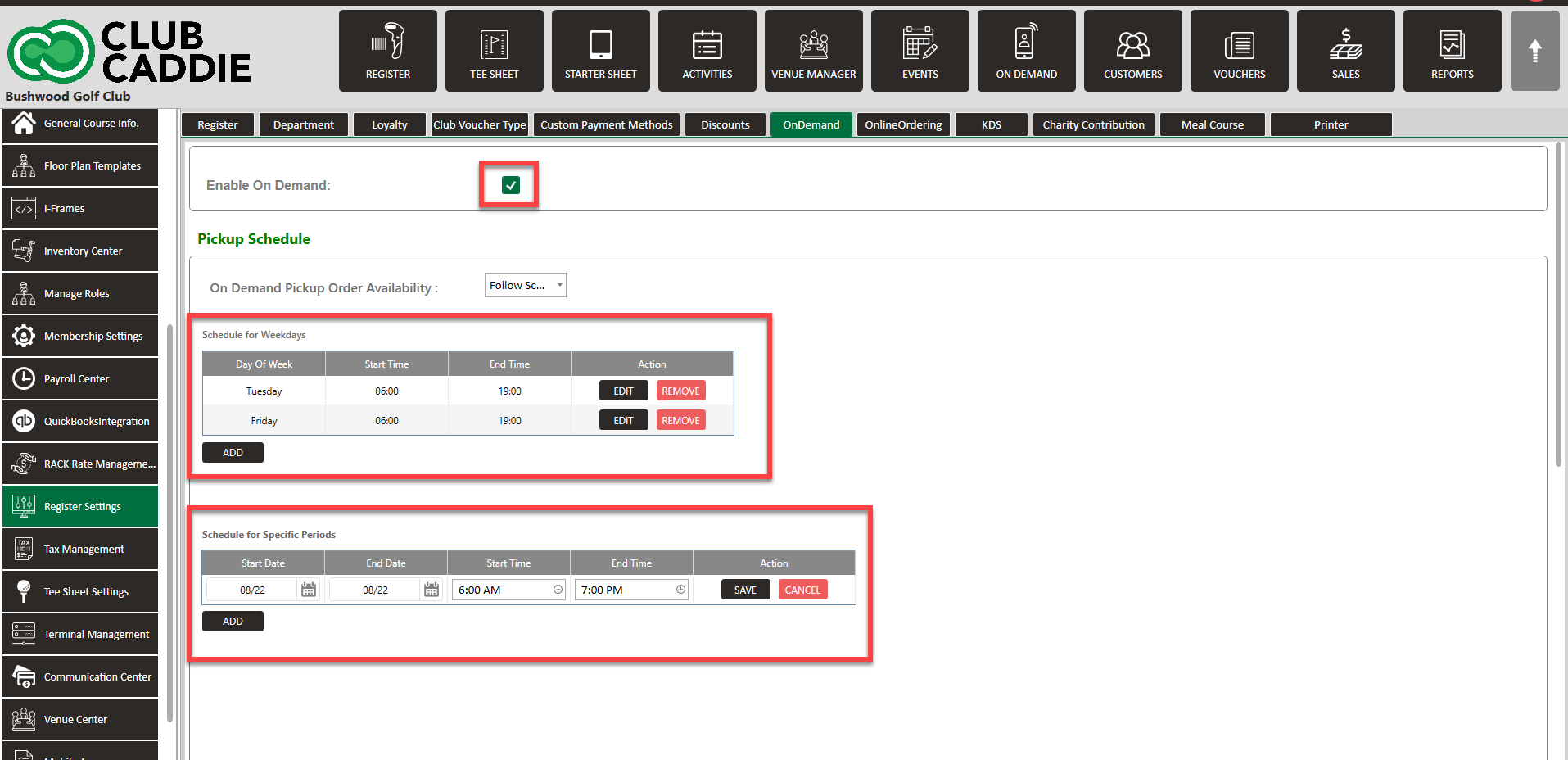
Step 3: If you would like your On Demand to follow your set schedule, you will need to select Follow Schedule from the drop-down On Demand Pickup Order Availability.
Step 3: If you would like your On Demand to follow your set schedule, you will need to select Follow Schedule from the drop-down On Demand Pickup Order Availability.

Examples: This scheduling feature gives you greater control over when customers can place On Demand orders. You can now set specific days and times when your service is available, creating a custom availability calendar. This means customers will only be able to order during your designated hours, preventing orders from coming in when you're closed, too busy, or otherwise unavailable. The key benefit is that you no longer need to constantly monitor On Demand orders or manually toggle the service on and off. Instead, the system automatically manages order availability based on your preset schedule.
New Added Feature: Sound notification for when there are new On Demand Orders to enhance awareness.
Related Articles
Settings – Register Settings (Video 14:00)
Article Contents: This will show you how to navigate through your register settings, as well as providing a brief description on what each setting can do for you club. Video: The video covers essential features such as printing tip receipts, adding ...Settings - Register Settings - Departments Tab Overview (Video 7:48)
Article Contents: In this video tutorial, we provide step-by-step instructions on navigating the second tab of the register settings: Department. Here are the key points covered: Step-By-Step: Step 1: The Department tab is where you create and manage ...Settings - Register Settings - Default Print Setting
Article Contents: This article gives step-by-step instructions on how to adjust the default print settings. Step-by-Step: Step 1: Click on the Gear Wheel icon on the top right corner of the screen. a Step 2: Click on Register Settings from the ...Settings - I-Frame
Article Contents: This article provides an overview of each I-Frame available in Club Caddie. Each one will have a URL connected with it that you will be able to embed into your website. Step 1: Navigate to Settings, then click on I-Frames from the ...Settings - Register Settings - Meal Course
Article Contents: This article contains step-by-step instructions on how to edit your display sequence for items in your register. Function: Users can create any number of courses and then assign those courses to individual Items. These courses will ...