Register - Sending Orders to Multiple Kitchen & Bar Printers
Article Contents:
This article covers how to set up and send an order to multiple Kitchen and Bar printers.
Step-by-Step:
Step 1: Click on the "Gear Wheel" Icon on the top-right corner of the screen
Step 2: Click on the “Register Settings” button on the left-hand menu.
Step 3: Choose the "Department" tab out of the five tabs seen across the top of your screen: Register, Department, Chart of Accounts, Loyalty, and Custom
Payment Method.
Step 4: In this step, you will be mapping sub-departments to their respective printer, either the Kitchen or Bar. Click on the gear icon shown on the far right-hand side of the screen.
Step 5: Depending on the sub-department, select either "Kitchen" or "Drinks" in the printer selection box.
Step 6: A) Press "Window Key" and Search "Control Panel" and press enter.
B) Click on "Devices and Printers".
B) Click on "Devices and Printers".
C) You can see all the printers connected to the PC and then right-click on the printer and select the "printer properties".
D) Rename your kitchen printer to "Kitchen"
E) Click on "OK" button to save your changes. If you have multiple printers, you will need to change the name of each to include "kitchen" in the name.
Step 7: To do a quick test of the setup, select a tab you want to send to the kitchen and bar printers.
Step 8: Once you have added all the food and
beverage
related items, you can click on the "Send" button at the bottom of the screen. If the item's sub-departments have been mapped to printers a print job will be generated alongside modifiers, tab info, and preparation instructions.
Example:
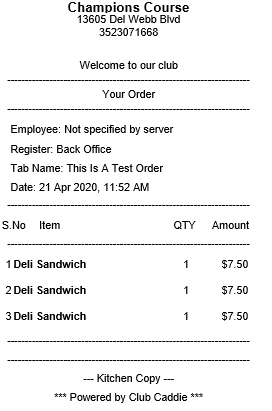
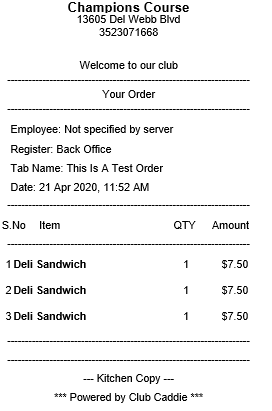
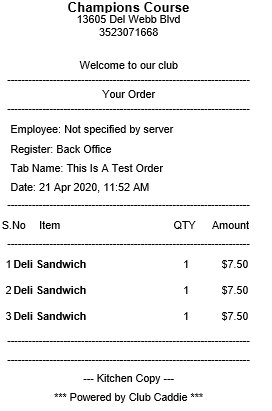
Kitchen 1 Kitchen 2 Kitchen 3
Related Articles
Register - Sending Orders to Kitchen/Bar for multiple prints.
Article Contents This article covers how to send an order to Kitchen/Bar for multiple prints. Step-by-Step: Step 1: Click on the "Gear Wheel" Icon on the top right corner of the screen Step 2: Click on the “Register setting” button on the left side ...Register - Sending Orders to Kitchen/Bar
Article Contents This article contains step-by-step instructions on how to send an order to a Kitchen/Bar. Step-by-Step: Step 1: Navigate to the register and add items for the order. After adding all the items to the order, click Send. Step 2: A ...Register: Seat Orders
Article Content: The steps below demonstrate how you can allow orders to be assigned to specific seats within a tab. When opening a new tab, users can specify the number of seats and assign orders to seats before sending them to the kitchen. Orders ...Register - Scanning a Barcode
Article Contents: This article contains step-by-step instructions on how to scan an item's barcode directly from the register using any compatible barcode scanner. Users can assign a barcode or a unique identifier to any item stored in the inventory ...Register - Pull Tabs : Check pending orders.
Article Contents: This article gives step-by-step instructions on pulling tabs by employees. Step-By-Step: Step 1: Click on the REGISTER module from the top of the screen. Step 2: Click on the TOOLS tab and click on the All Tabs/Pull Tabs button. The ...